
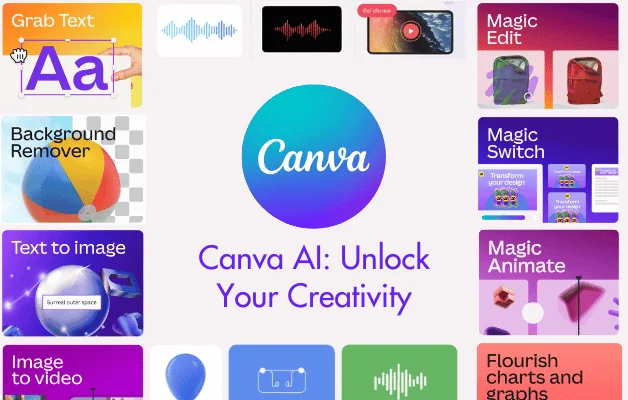
On November 19, Canva introduced two new controls it calls AI Controls. The company said it isn’t its place to tell anyone how to create, and that the controls put that decision with its community.
The two controls are:
– A master switch that hides generative AI tools
– A preference to see less AI-generated content in the template and design element library
Both are available to Free and Pro accounts, with a gradual rollout reported.
Where to Find the Switch
According to reports, the main toggle sits in Profile, then Settings, then Permissions. It is labeled Enable generative AI features. The second option appears under Profile, then Your account, in an AI personalization setting. Menu names can vary slightly as the rollout continues.
What Turning It Off Disables
Reports say the toggle hides these generative tools:
– Magic Write
– Magic Design
– Magic Expand
– Magic Edit
– Magic Layers
– Dream Lab
– Canva Code
– AI Shapes
– Image generation inside the Canva chatbot
The switch can be turned on or off again at any time.
What Stays On
Not everything disappears. Background Remover and Magic Grab remain available because Canva treats them as assistive editing tools that only work on content already in a design. That means this isn’t a complete removal of every AI-powered function, a point several outlets noted.
The See Less AI Content Option
The second control lets people favor human-made items when browsing the library. Canva says AI-generated assets are only a small portion of its library, and that designs using them carry an AI tag in their metadata.
Why It Matters
Some creatives have asked for an AI off switch since 2023, especially artists and designers who prefer working without generative tools or want to avoid AI-generated imagery in their projects. Commentators point out that giving people control can build trust, particularly as the debate over AI in creative work continues.
